cse15l-lab-reports
Lab Report 1 - Remote Access and the Filesystem
Author: Matthew Tan
Step 1: Installing VS Code
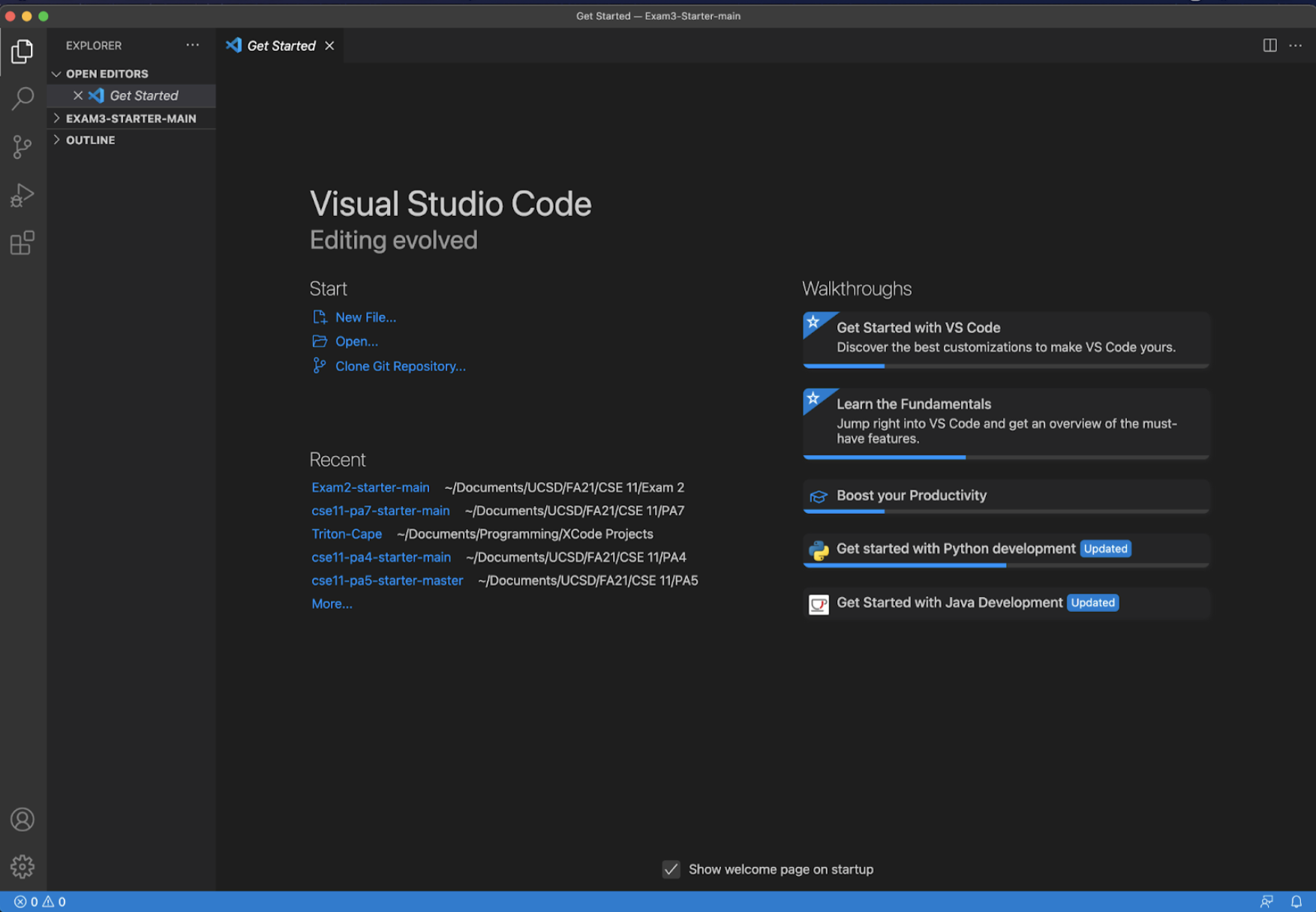
Download Visual Studio Code here. Once you’ve completed the installation, the VS Code launch screen should look something like this:
Step 2: Remotely Connecting
The next step is to reset the password to activate your course-specific account. Once you know your newly set password, enter the following command in your terminal, but replacing the “aky” with the letters in your course-specific account.
ssh cs15lwi22aky@ieng6.ucsd.edu
You will then be prompted with a yes/no quesitoning whether or not to allow the connection.
ssh cs15lwi22aky@ieng6.ucsd.edu The authenticity of host ‘ieng6.ucsd.edu (128.54.70.227)’ can’t be established. RSA key fingerprint is SHA256:ksruYwhnYH+sySHnHAtLUHngrPEyZTDl/1x99wUQcec. Are you sure you want to continue connecting (yes/no/[fingerprint])?
Enter yes, then your password, and your connection will be initialized.
Once you’ve successfully established a connection, the output should look similar to the image below:

Step 3: Trying Some Commands
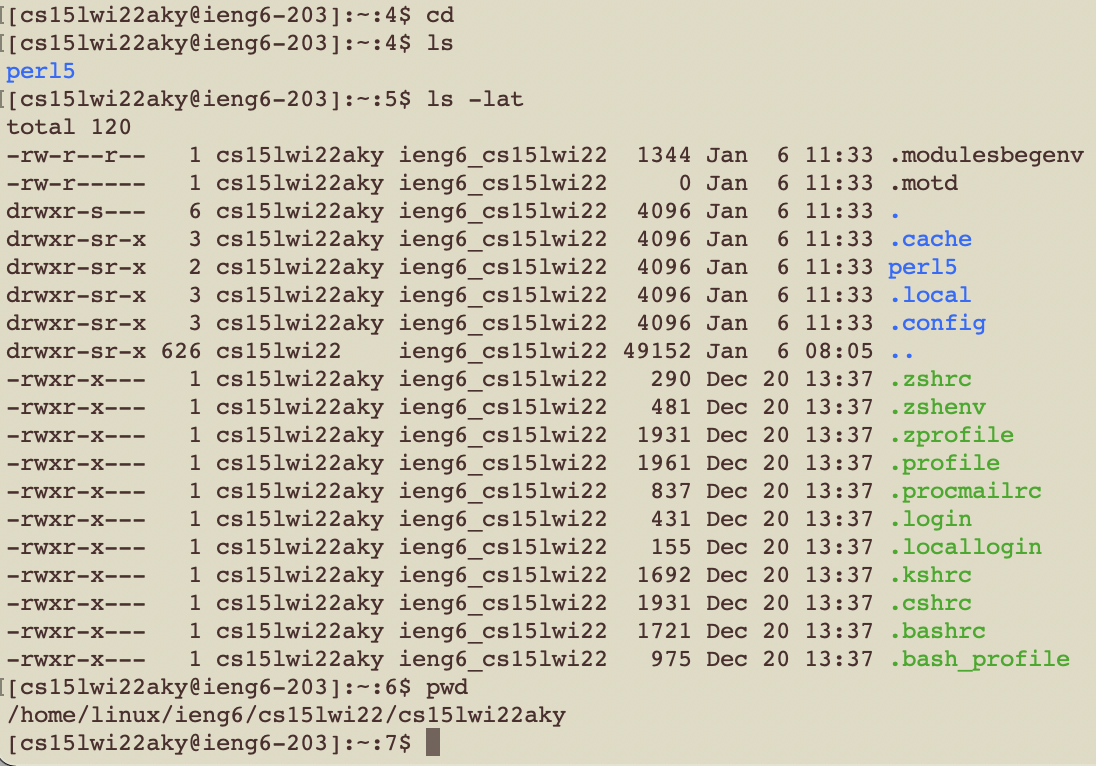
The next step is to start triyng out some command-line commands and observe the output. Some useful commands to know are cd, ls, pwd, and scp.
Step 4: Moving Files with scp
The scp (secure copy) command is useful for copying files and directories between two locations. The structure of this command is [scp + file/directory + course-specific account + ~/]. The code block below illustrates how to copy a local file to your course-specfic account.
scp WhereAmI.java cs15lwi22aky@ieng6.ucsd.edu:~/
The output should look something like this:

To confirm the file successfully copied, ssh into your course-specific account and type ls.

Step 5: Setting an SSH Key
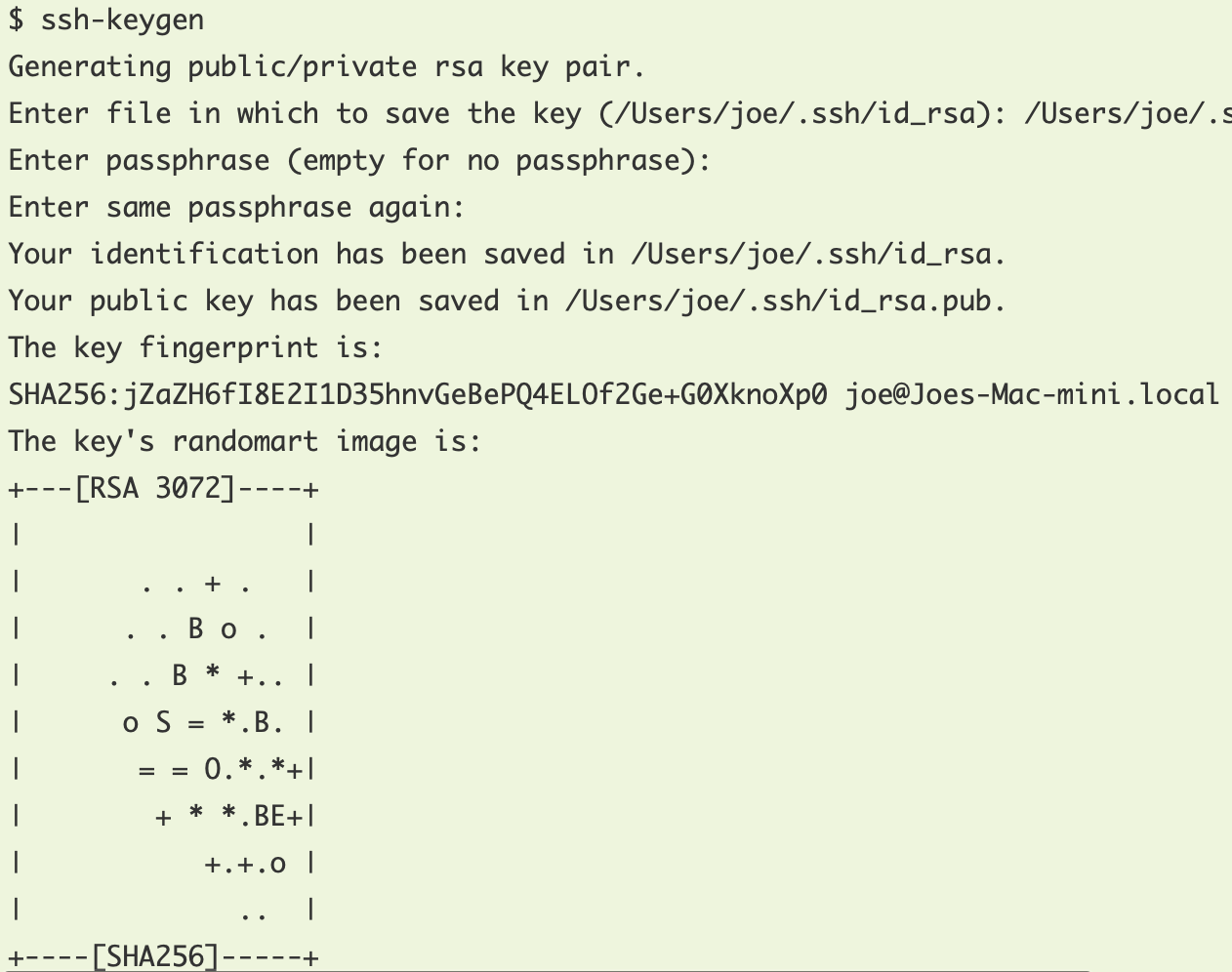
SSH keys are a great way to avoid having to enter your password each time you want to copy over files to the server. To generate your key, enter ssh-keygen. The output should look something like:
Now you should no longer have to re-enter your password each time you want to ssh or scp.
Step 6: Optimizing Remote Running
Finally, there are a few tips to help you navigate the command-line tools more efficiently. The first (and my personal favorite) is using up-arrow in the command-line to automatically pull up your last-used command(s). This shortcut is a huge time-saver that usually saves me anywhere between 10-50 keystrokes on average. It especially comes in handy when I’m writing programs and need to recompile and rerun the same files multiple times.
Next, you can use any terminal command (in quotes) at the end of an ssh command to run it directly rather than having to type it out separately (see example below). If you’re using this tip alongside up-arrow, it can save you a few extra keystrokes.

My final tip is to use semicolons to run multiple commands at once (see example below). This is helpful in the same way as the previous tip in that it helps you avoid having to run commands on separate lines. It will also help you save a couple keystrokes.

If you choose to implement these tips into your command-line workflow, they will save you time by allowing you to avoid unnecessary keystrokes.
Step 6 (pt. 2) - Tips in Action
To give a concrete an example of approximately how many keystrokes using the previously listed tips usually save me, I’ll walk through an example of making a local edit to a file, copying it to the remote server and running it.
To create the file locally, I type touch WhereAmI.java.
Then, I enter nano WhereAmI.java to edit the java file (you can edit the file in any text editor).

Next, I copy the file over the remote server using the scp command.
Finally, I use the ssh, javac, and java commands separated by semicolons in the same line to log onto the remote server, compile the code, and run the program.
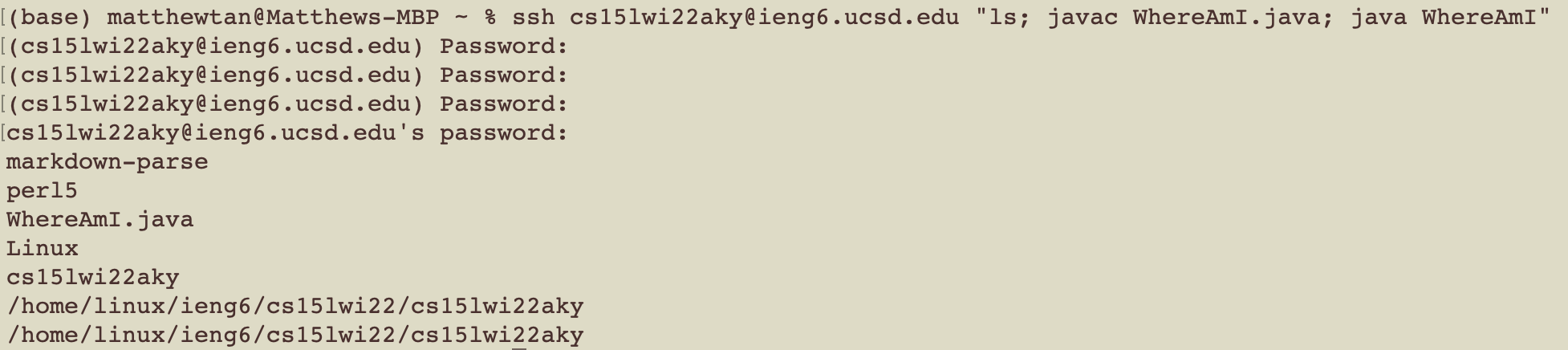
By using the tips listed above in this example, I saved around 20 keystrokes.
Conclusions
This lab covered how to connect to my course-specific account using ssh, use command-line tools to view file info and copy them over, and taught me how to utilize the command-line more efficiently.